Rotation & Rotation Blocks · 4 minutes
Setting up Rotation Blocks
Rotation blocks decide how long each set is, by how many IPEs are in the rotation: a slow night can have longer sets, and a full rotation shorter ones.
-
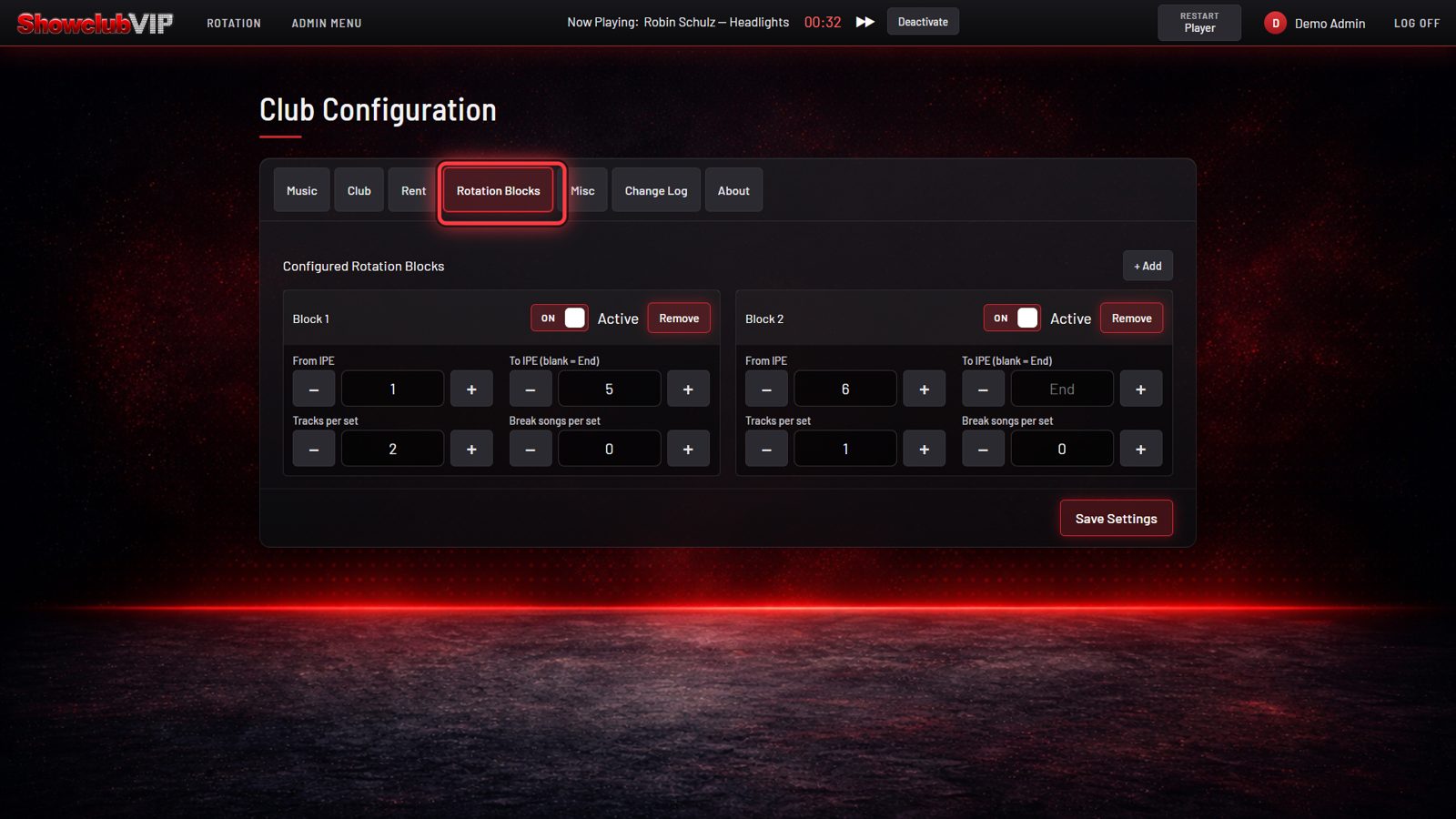
Open Rotation Blocks
On the Main Menu tap Club Configuration, then the Rotation Blocks tab.
-
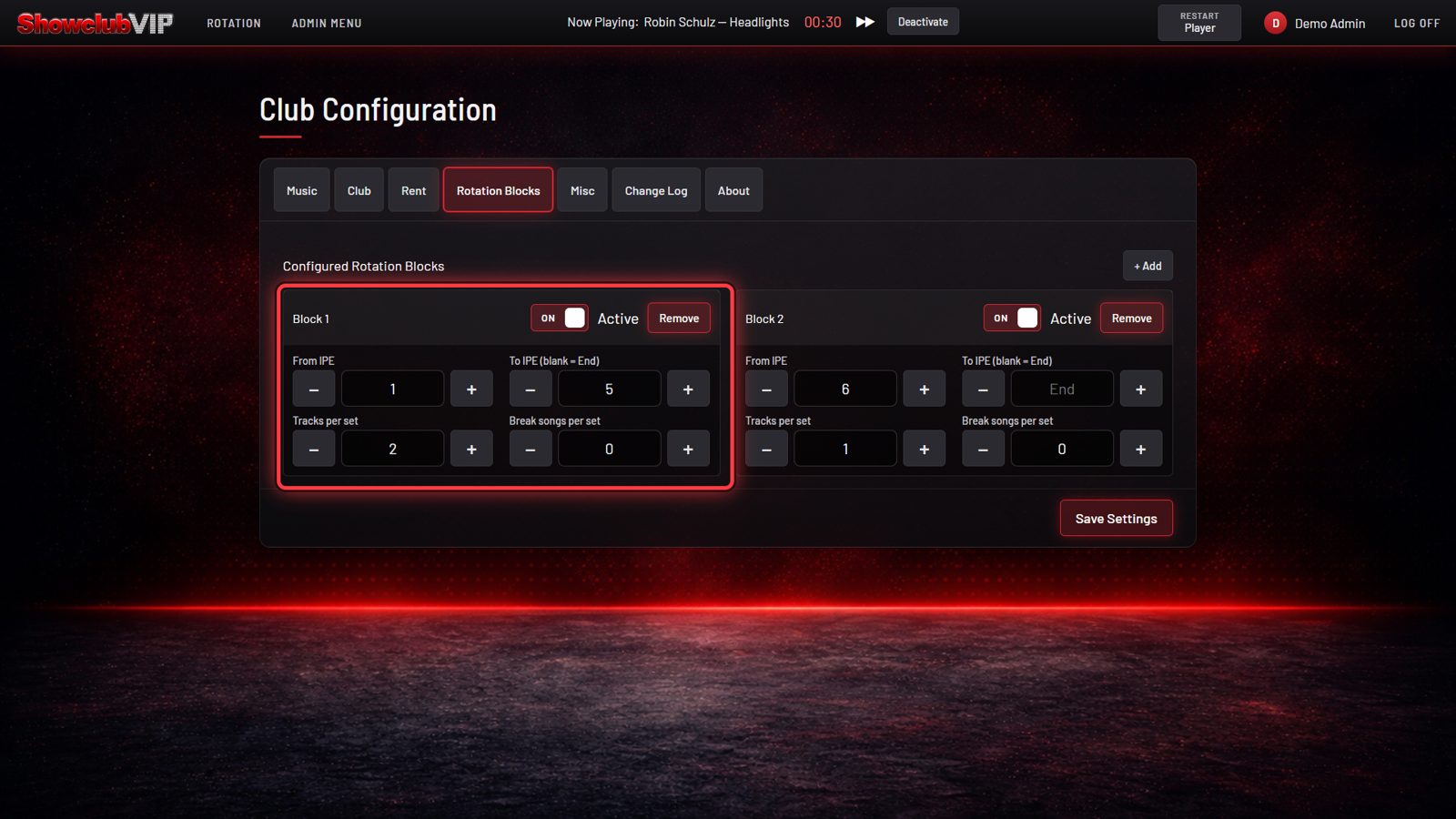
What a block says
Each block covers a number of IPEs, From IPE to To IPE (blank means no end). For that many IPEs, each set gets Tracks per set songs and Break songs per set between sets.
-
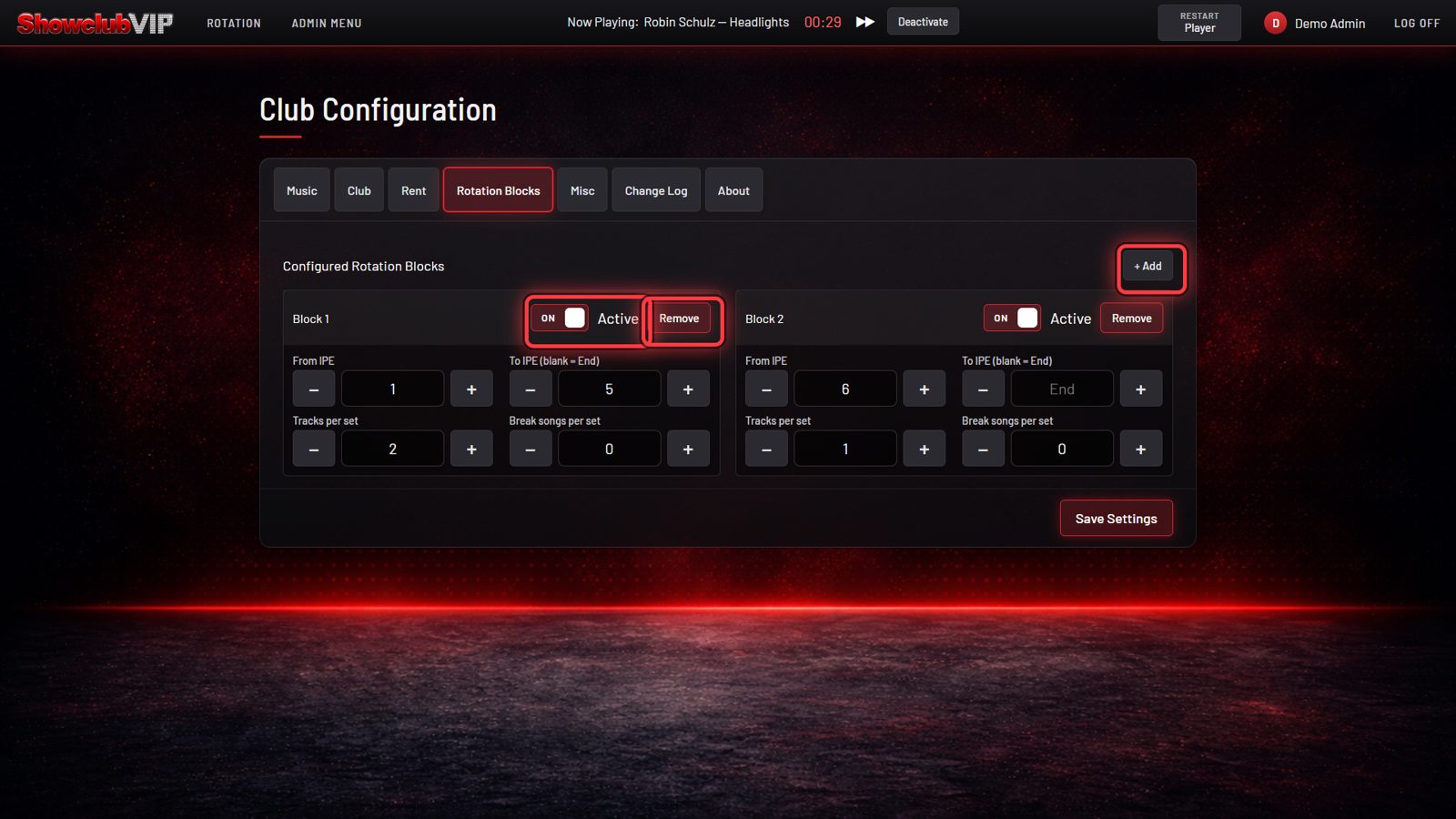
Add, switch off or remove
+ Add makes a new block after the last one. Active switches a block on or off; one that's off shows red and striped, and the rotation doesn't use it. Remove asks first.
-
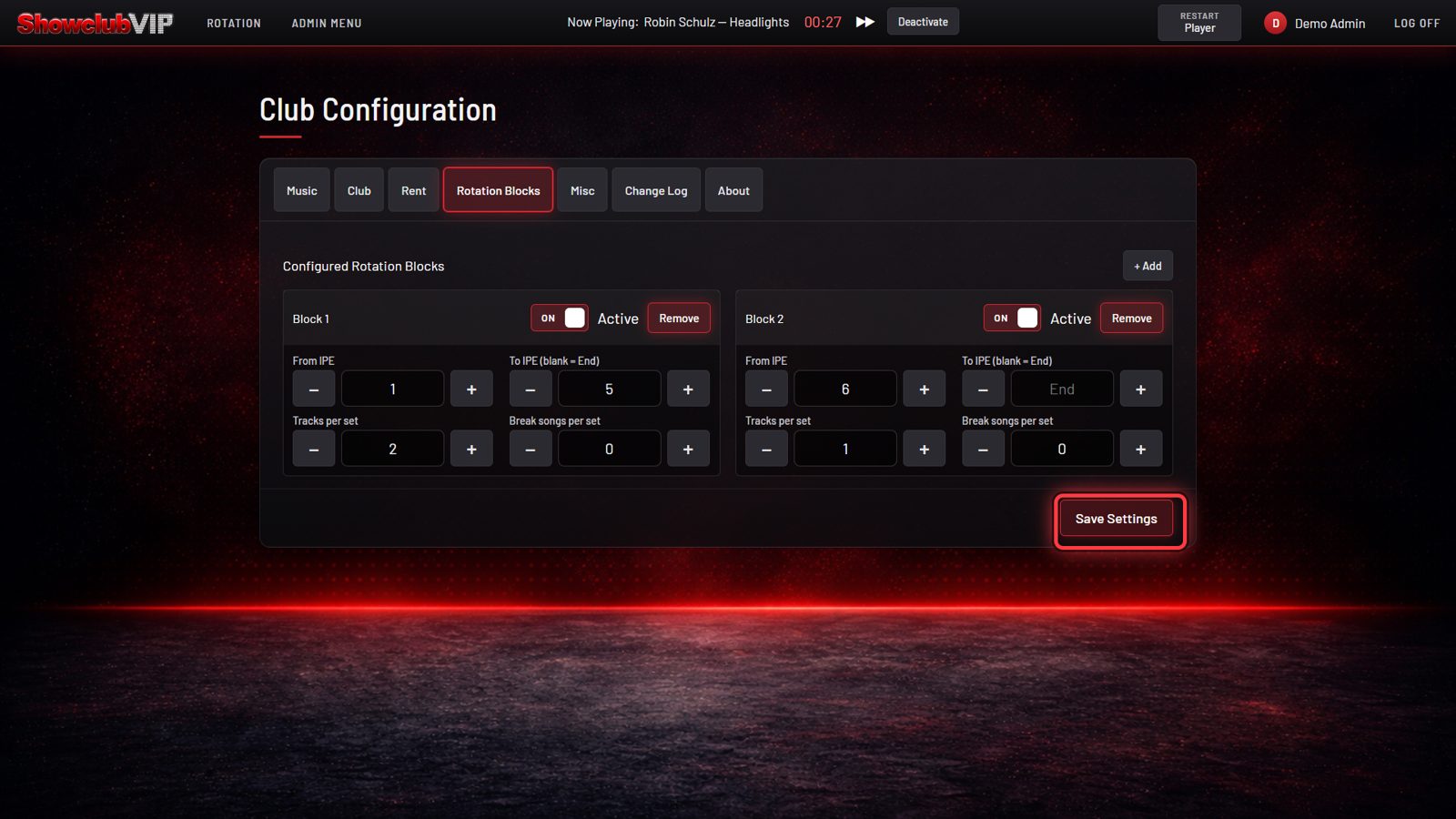
Save Settings
Nothing changes until you tap Save Settings. The waiting sets are reshaped at once.
-
Dual Stage and Second Stage
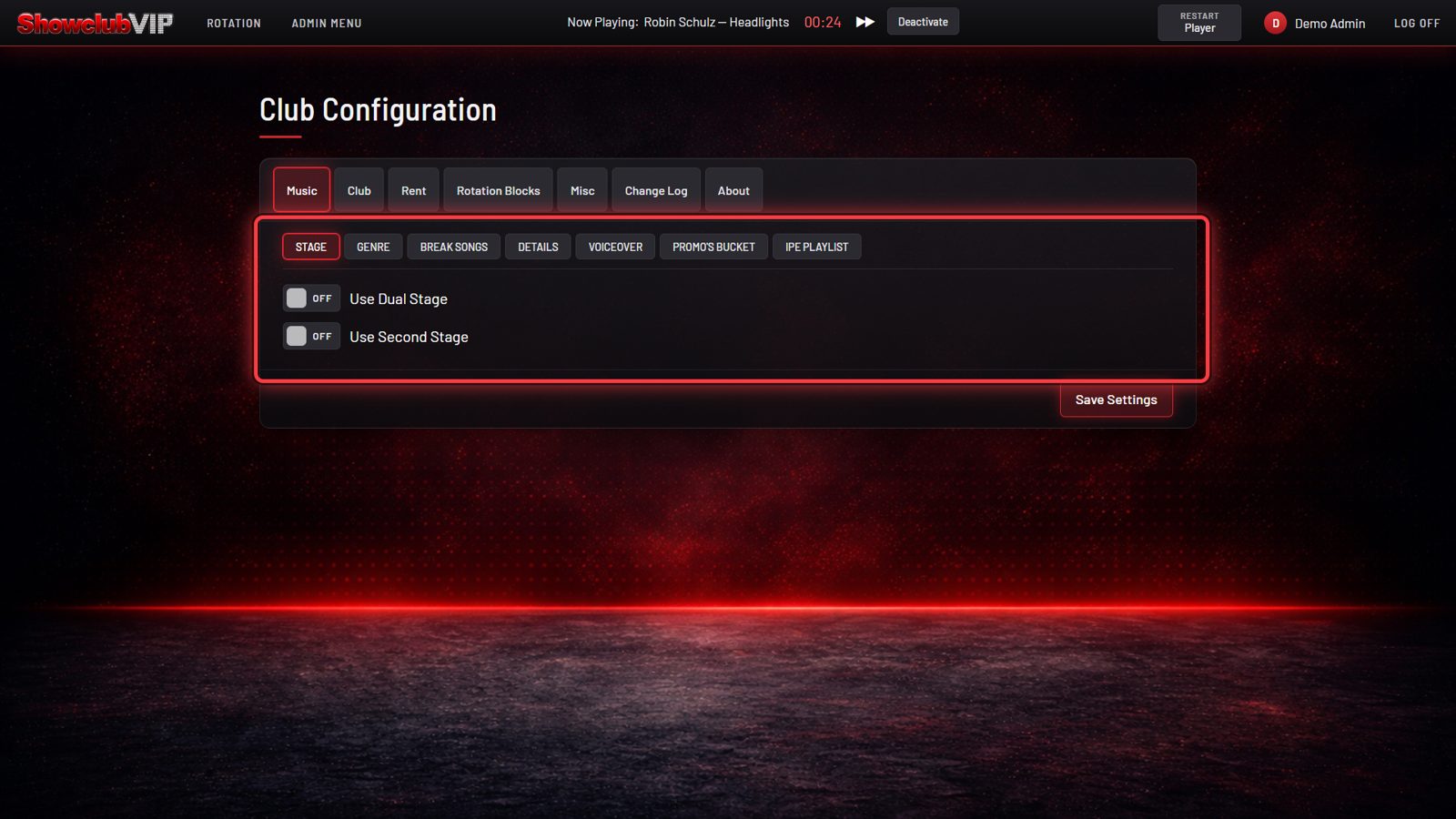
Under the Music tab › Stage: with Use Dual Stage, two IPEs overlap: the next one is called before the last one leaves, and the blocks are set aside. Use Second Stage sends each IPE on to a second stage after their set. Only one can be on.
Try it on the live demo
The demo club is the full system, with IPEs checked in and the rotation moving. Ask for your one-time PINs and try it yourself.
Request demo access