IPEs & Rent · 3 minutes
Adding and editing an IPE
Add each IPE once; after that they sign in with their own PIN.
-
Open Cast
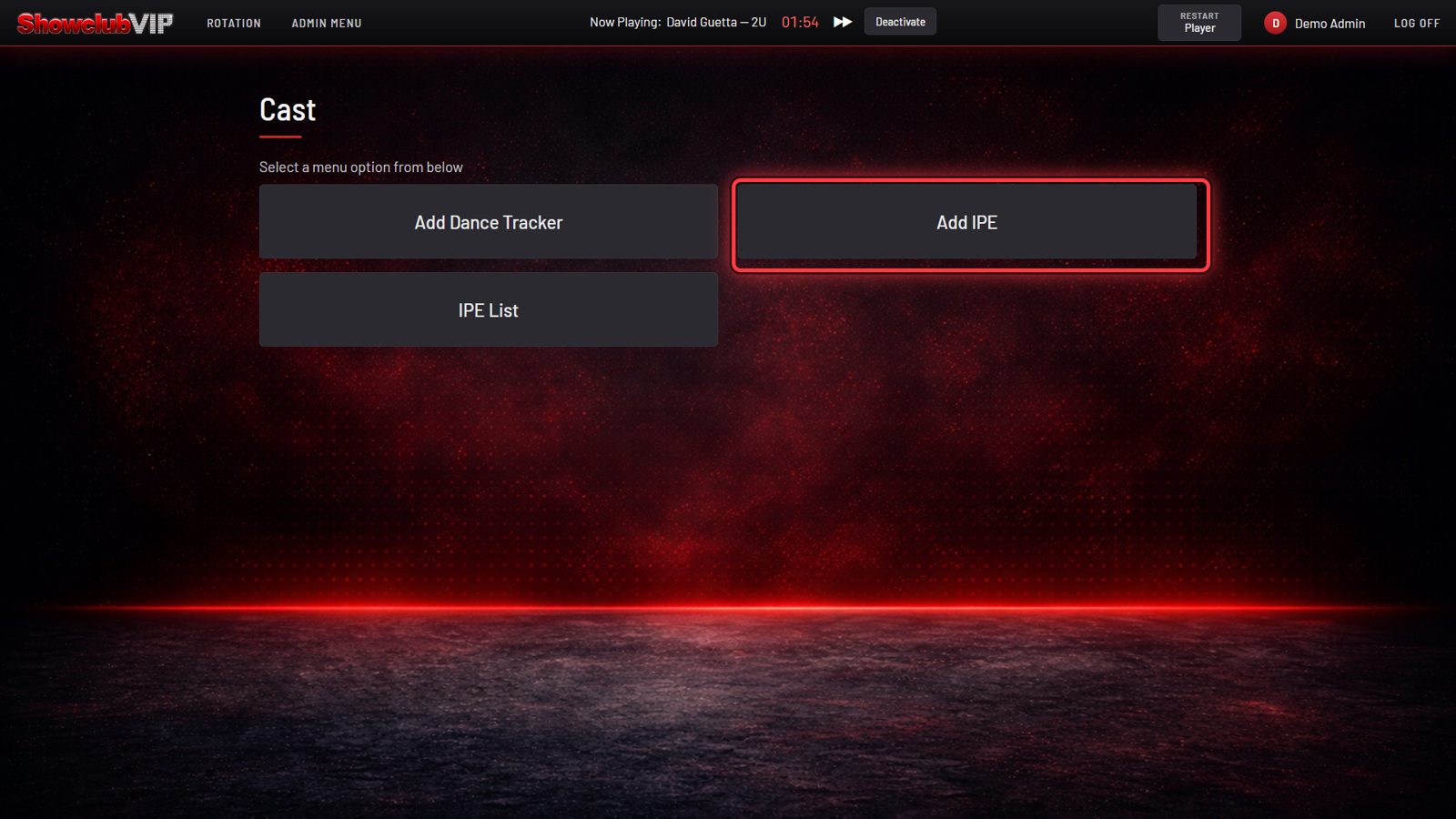
On the Main Menu tap Cast, then Add IPE.
-
The IPE's details
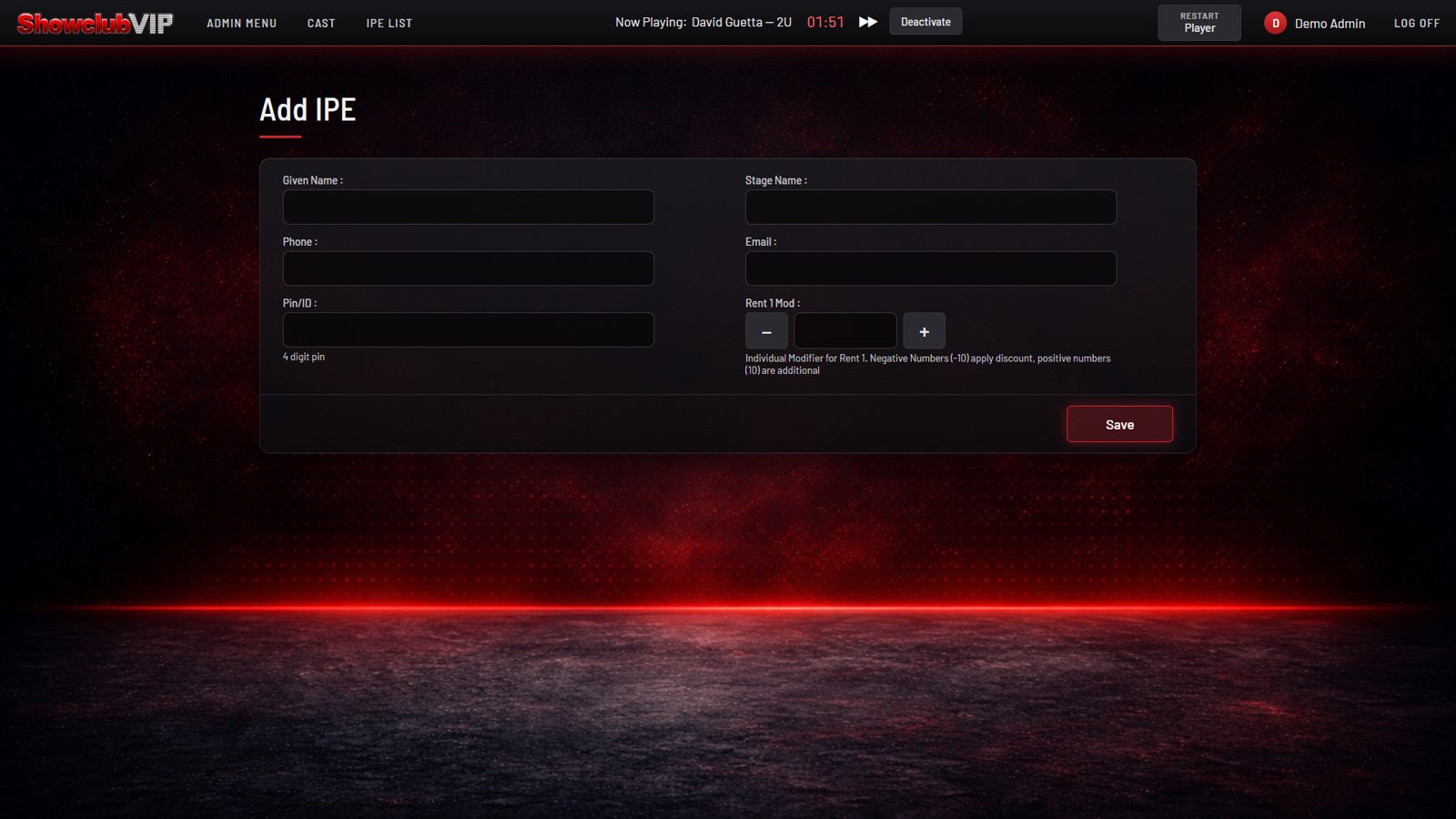
Type their given name, stage name, phone, email, and the four-digit PIN they'll sign in with. Rent 1 Mod changes their rent: a negative number is a discount, and a positive one adds to it. Tap Save.
-
Editing an IPE later
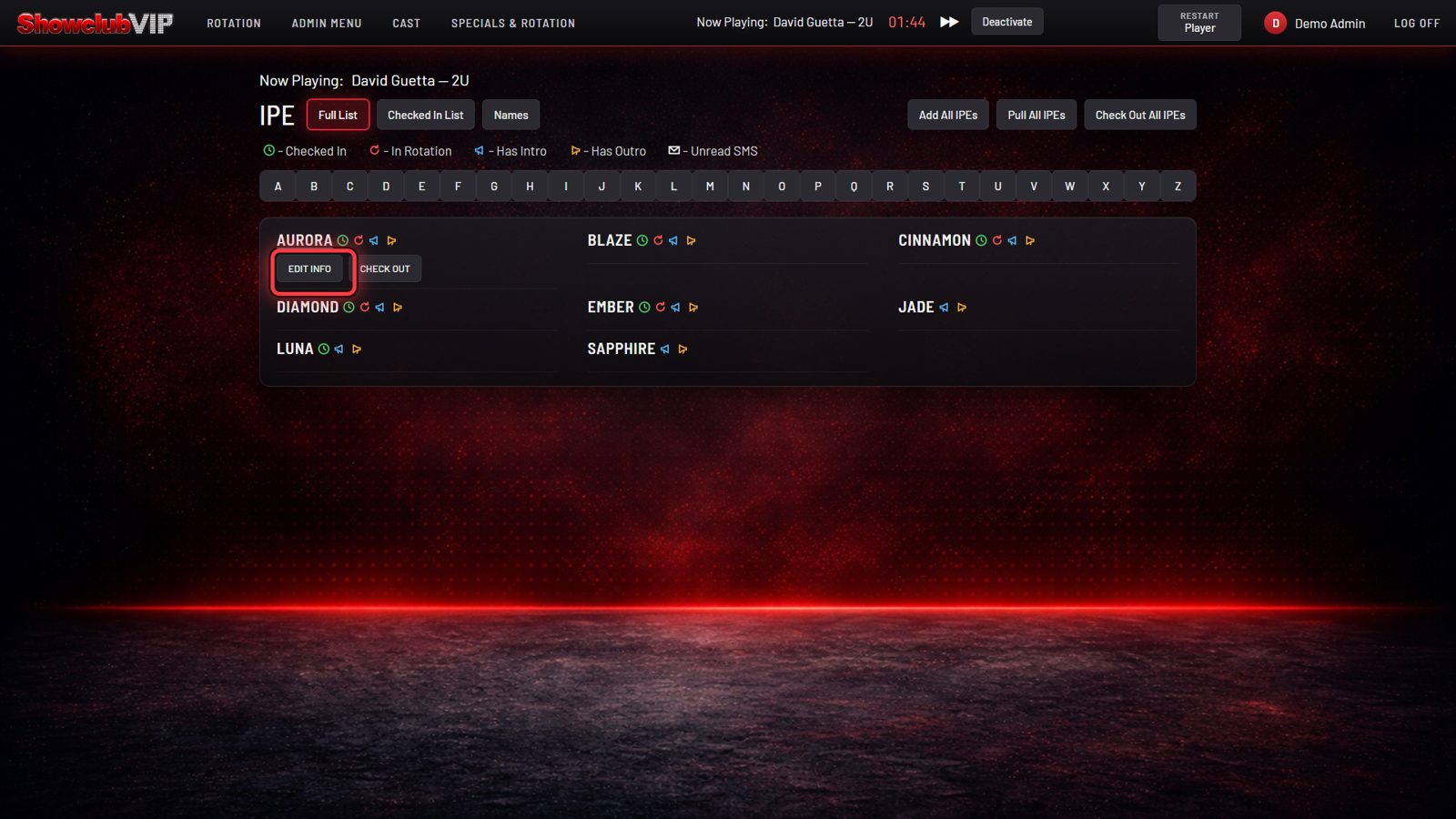
On the IPE List, tap Full List, tap the IPE's name, then Edit Info.
-
What you can change
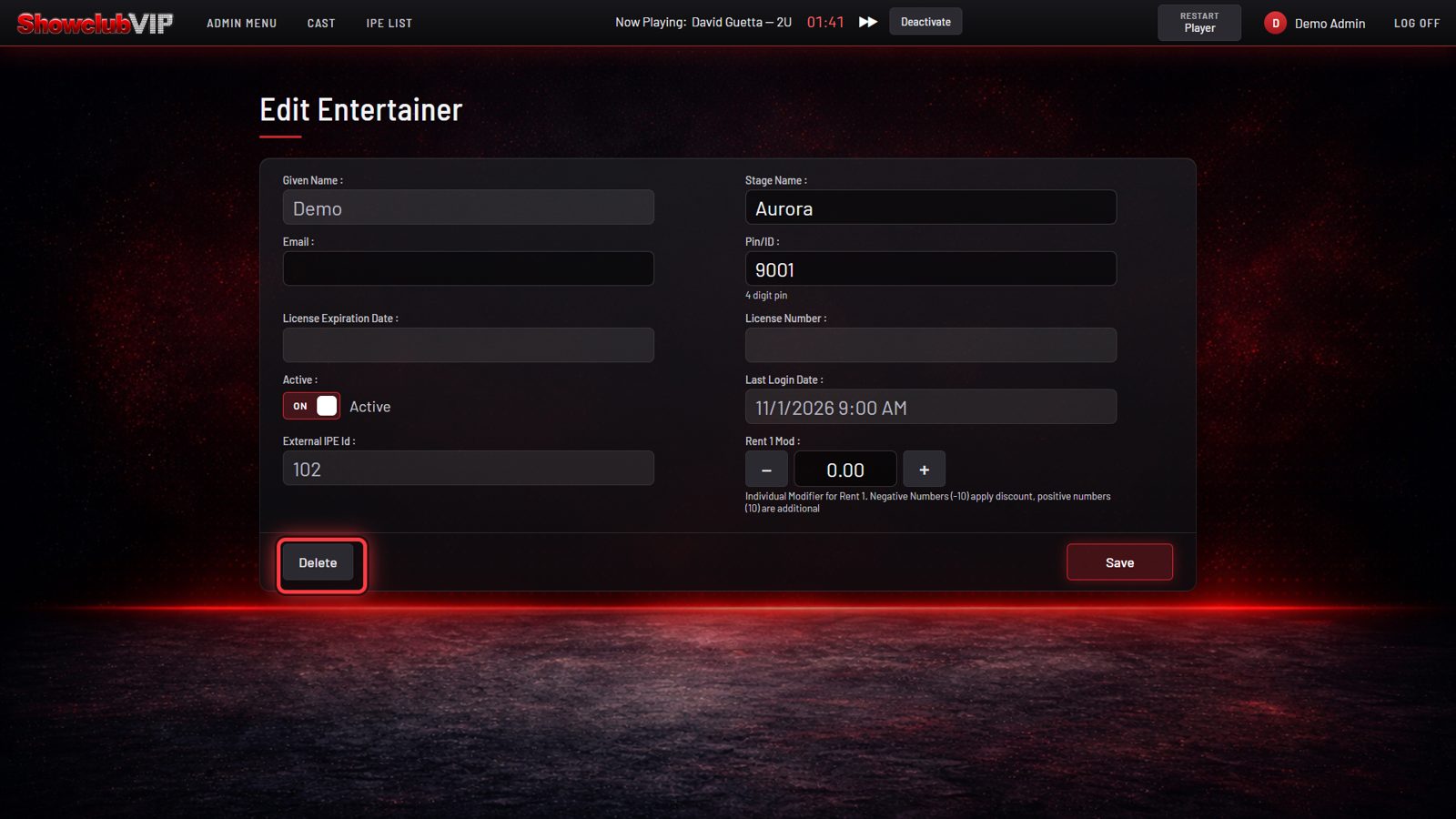
The stage name, email, PIN and rent, or Deactivate the IPE with Active. Greyed boxes are kept by ShowclubVIP. Delete keeps their rent and dance history.
-
If your club uses a POS
Add IPEs on the POS: it sends them to ShowclubVIP with the ID it knows them by. An IPE added on ShowclubVIP instead won't match the POS until we link them for you. With a connected POS, we can switch Cast off for your club, so IPEs are only ever added on the POS.
Try it on the live demo
The demo club is the full system, with IPEs checked in and the rotation moving. Ask for your one-time PINs and try it yourself.
Request demo access